





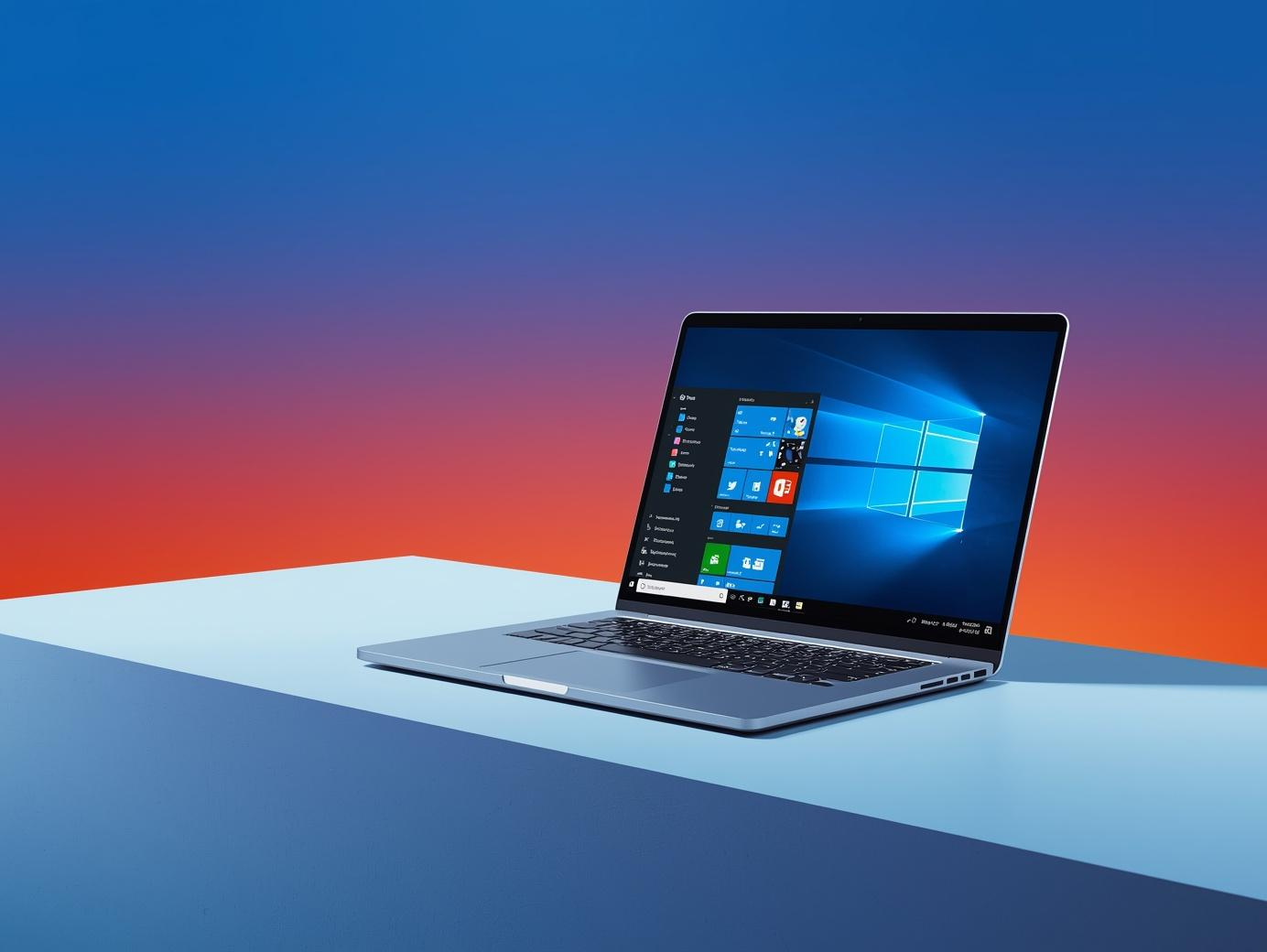
MS Office 2021 professional still matters in 2026. Many people want reliable apps with a one-time purchase. They also want strong offline access. This suite supports that need well. It fits home offices, students, and small teams. It runs on modern Windows and macOS versions. It also works well with Microsoft 365 services. You can write, analyze, present, and email with confidence. You avoid monthly billing stress. You keep your files local when needed. And you can still share through OneDrive if you choose.
This guide covers what you get, who it suits, how it compares, and how to buy safely. You will also learn setup tips and productivity wins. The aim is a smooth, practical path. You will get clear answers with current, user-first advice.
What is MS Office 2021 Professional?
It is a one-time license version of Microsoft Office. It is not a subscription. You pay once and use it long-term. It includes core apps for daily productivity. It also adds business-focused tools.
Typical included apps are:
- Word
- Excel
- PowerPoint
- Outlook
- Publisher (Windows only)
- Access (Windows only)
- OneNote (included or installed separately, depending on device)
You can create documents and spreadsheets offline. You can also connect to cloud services. That gives flexible work options. You can work from a laptop on a trip. Then you can sync later when you are online.
MS Office 2021 professional vs Microsoft 365: which wins?
Both can be great. The best choice depends on how you work.
One-time license benefits
You pay once. You keep using the apps. You avoid ongoing monthly costs. This can be ideal for stable needs. It also helps if your device does not change often.
Subscription benefits
Microsoft 365 adds frequent feature updates. It also includes extra cloud storage. You often get more collaboration tools. You may also get premium security add-ons.
The practical decision
Choose the one-time license if you want:
- predictable cost
- offline-first work
- fewer changes over time
Choose Microsoft 365 if you want:
- newest features as they release
- large cloud storage
- the most real-time collaboration
Both options can open and save the same common file types. Yet the subscription may offer newer features first.
Key features in Office 2021 you should know
Office 2021 brought real improvements. Many updates target speed and clarity. Others focus on accessibility and collaboration.
Better performance and stability
Apps open faster on modern hardware. They also handle large files more smoothly. Excel can work better with big datasets. PowerPoint runs cleaner with modern media.
Modern visuals and smoother tools
Office 2021 uses updated interface elements. You will see cleaner icons and improved contrast. You also get better inking tools on touch devices. This helps with notes and markups.
Stronger collaboration options
You can co-author documents when files live in OneDrive or SharePoint. You can also see comments faster. Sharing is simpler in many apps.
Excel upgrades that matter
Excel 2021 includes useful functions. They support modern analysis. Dynamic arrays improve how results spill into cells. New functions reduce manual work.
Who should buy the MS Office 2021 Professional edition?
This suite fits several groups well.
Small business owners
You may need Outlook for email and scheduling. You may also need Access or Publisher. A one-time license can reduce overhead.
Freelancers and consultants
You can create proposals in Word. You can track income in Excel. You can present work in PowerPoint. You can keep everything offline when needed.
Students and educators
You can write papers and build presentations. You can manage research notes. You can also work without a constant internet connection.
People who dislike subscriptions
Some users prefer ownership-style purchasing. They want a stable toolset. They also want fewer changes during busy periods.
MS Office 2021 professional system requirements (updated view)
Exact requirements depend on platform updates. Yet these guidelines stay helpful.
Windows
- A supported Windows version
- A modern CPU
- Enough RAM for your workload
- Adequate storage for apps and updates
macOS
- A supported macOS version
- Sufficient storage and memory
- A stable internet connection for activation
Microsoft updates support policies over time. So, check Microsoft’s official page before purchase. That avoids activation or compatibility issues.
How to buy safely and avoid fake keys
Fake licenses are common online. So, buy carefully. This protects your money and your device.
Safer places to purchase
- Microsoft Store
- Well-known authorized retailers
- Large, reputable electronics stores
Red flags to avoid
- prices that look unreal
- sellers who cannot explain the license type
- “Lifetime key” claims with no proof
- email-only delivery from unknown sources
Why these matters
Shady keys can fail later. They can also be resold. That can lock you out. It can also waste your time. Safe buying keeps setup simple.
Installation and activation: a smooth checklist
A clean setup prevents errors. Use this quick plan.
Step 1: Remove conflicting versions
Old Office versions can cause conflicts. Uninstall unused versions first. Restart after removal.
Step 2: Sign in with the right Microsoft account
Use the account you will keep long-term. That helps with reinstallation later.
Step 3: Install from the official link
Use Microsoft’s setup portal. Avoid random download sites. This reduces malware risk.
Step 4: Update after install
Run updates right away. This improves security and stability.
Step 5: Set file save preferences
Decide where you store files. Pick local folders or OneDrive. You can also mix both.
Best real-world productivity tips for Office 2021
Small habits create big time savings. Try these focused tips.
Word: write faster with styles
Use Heading styles instead of manual formatting. This keeps the layout consistent. It also builds an instant table of contents. Your documents look cleaner with less effort.
Excel: build repeatable templates
Create templates for invoices and trackers. Then reuse them. You avoid mistakes. You also reduce setup time each week.
PowerPoint: keep slides simple
Use fewer words per slide. Use strong visuals and clear headings. Then add speaker notes for detail. This improves audience focus.
Outlook: tame inbox noise
Use Rules for recurring emails. Use Focused Inbox if available. Also, schedule email check times. This reduces constant context switching.
Access: track data without chaos
If you manage structured data, Access helps. Use forms for data entry. Use queries for reports. You gain control without fragile spreadsheets.
Publisher: design quick marketing assets
Publisher helps create flyers and brochures fast. You can also export to PDF for easy sharing.
MS Office 2021 Professional for remote work
Remote work is still a standard in 2026. Office 2021 can support it well.
Offline-first workflows
You can work during travel. You can draft, edit, and review offline. Later, you can sync and share.
Share and co-author when needed
If you store files in OneDrive or SharePoint, collaboration becomes easier. Comments stay organized. Version history helps avoid confusion.
Use Teams with Office files
Teams is often separate from Office 2021 licensing. Yet you can still use Teams for meetings. You can share Office files during chats. This supports fast coordination.
Security and privacy basics you should follow
Security is not only about software. It also depends on user habits.
Keep updates on
Security updates close vulnerabilities. So, update Office and your OS. Do it regularly.
Use strong sign-in protection
Use a strong password. Add two-step verification to your Microsoft account. This blocks many common attacks.
Watch macro files
Avoid enabling macros from unknown sources. Macro malware is still a risk. Only enable macros you trust and understand.
Use encrypted storage when needed
If you handle sensitive files, use device encryption. Also, back up data to a secure drive. You can also use a trusted cloud storage with strong access control.
Common questions people ask (with clear answers)
Is Office 2021 still supported?
Support changes over time. Microsoft publishes lifecycle dates. Check the official lifecycle page for the latest status. This ensures you plan upgrades calmly.
Can I install it on multiple computers?
License terms vary by edition and purchase type. Some licenses allow one device. Others may allow more. Always read the license details shown at purchase.
Does it include OneDrive storage?
OneDrive storage is a Microsoft account service. It is not the same as a subscription bundle. You can still use OneDrive if you have it. Yet storage amounts depend on your account plan.
Will it work with Google Docs users?
Yes, you can share common formats like .docx and .xlsx. Yet formatting can differ across tools. So, do a quick check before final delivery.
Can I open files made in Microsoft 365?
In most cases, yes. Yet, very new features may not render perfectly. This happens when a file uses a tool that Office 2021 does not have.
How to choose the right Office 2021 edition
People often confuse editions. Here is a clear way to decide.
Home and Student
Good for Word, Excel, and PowerPoint. It fits basic use. It lacks Outlook and business extras.
Home and Business
Adds Outlook. It suits many small businesses. It still may not include Access or Publisher.
Professional
Adds Publisher and Access on Windows. It targets users who need those tools. It can be a good fit for admin-heavy work.
Pick the edition based on the apps you truly need. Buying extra apps you never use is not efficient.
File compatibility and best formats to use
Use common formats for smooth sharing.
- Word: .docx or export .pdf for final copies
- Excel: .xlsx or export .csv for data exchange
- PowerPoint: .pptx or export .pdf for handouts
When sending final documents, PDF reduces layout issues. When collaborating, use the native format.
Troubleshooting: fast fixes that often work
Activation problems
- Verify you used the correct account
- Confirm internet access during activation
- Check date and time settings on your device
- Re-run the activation wizard
App crashes or slowdowns
- Install updates
- Disable unnecessary add-ins
- Repair Office from system settings
- Check for low disk space
File sync issues
- Confirm OneDrive is signed in
- Check storage limits
- Pause and resume sync
- Avoid special characters in file names
These steps solve many common issues. If they do not, Microsoft Support can guide you based on error codes.
Smart ways to get more value from Office 2021
Build a personal template library
Save templates for proposals, budgets, and reports. Keep them in one folder. This speeds up repeat tasks.
Use keyboard shortcuts daily
Shortcuts save minutes each hour. Over weeks, that becomes hours. Learn a few at a time. Then build the habit.
Create a weekly file cleanup routine
Archive finished work. Use clear file names. This reduces future search time. It also lowers stress.
Combine Office with modern tools
Use Office for core creation. Use cloud storage for sharing. Use a task app for planning. This mix works well in 2026 workflows.
Is it worth it in 2026?
If you want a stable, offline-capable productivity suite with a one-time cost, Office 2021 can still be a strong choice. It handles core work well. It also supports modern collaboration when you connect it to cloud storage. Buy from trusted sources, keep updates on, and set up smart workflows. You will get reliable daily performance without subscription pressure.