
Picture this. You are sitting in your home office. Your coffee is hot. Your laptop is open. You are ready to start your workday. Then, you get a notification. It says someone is trying to log in to your system from a different country. Your heart skips a beat. Is your data safe? Are your files protected?
This scenario is not rare. It happens to thousands of remote workers every single day. The shift to remote work has changed everything. We no longer sit inside secure office buildings. We work from coffee shops, libraries, and our living rooms. This flexibility is great. But it also brings new risks.
That is why you need a solid plan. You need a guide that shows you exactly how to stay safe. You need the Windows 11 for Remote Work security guide.
Windows 11 is more than just an operating system. It is a powerful tool built for the modern worker. It comes with many security features. These features are designed to protect you from cyber threats. However, many people do not use them. They leave their systems open to attacks.
This guide will change that. We will walk you through every step. We will show you how to lock down your system. We will explain the best practices for remote work. By the end, you will feel confident. You will know that your data is safe. You will master the Windows 11 for Remote Work environment.
Let us begin this journey together. Your security matters. Your privacy matters. Let us make sure both are protected.
What Makes Windows 11 for Remote Work So Secure?
Windows 11 is built with security at its core. Microsoft designed it with hybrid work in mind. They understood that people would work from anywhere. They built protections for that reality.
The Windows 11 for Remote Work experience starts with hardware. Modern devices come with TPM 2.0 chips. These chips store your encryption keys safely. They make it hard for attackers to steal your data. Secure Boot is another key feature. It ensures that only trusted software loads when you start your PC.
Then, we have the operating system itself. Windows 11 uses virtualization-based security. This creates a secure area inside your memory. It keeps sensitive data away from the main system. Credential Guard is part of this. It protects your login details from theft.
These features work together. They create a strong defense. They make Windows 11 for Remote Work a reliable choice. However, you must turn them on. You must configure them correctly.
Understanding the Zero Trust Model in Windows 11
Zero Trust is a big idea. It means “never trust, always verify.” Windows 11 follows this principle closely.
In the old days, we trusted everything inside the office network. That is not safe anymore. Today, threats can come from anywhere. A device inside your network might be compromised. A user might have a stolen password.
Windows 11 for Remote Work uses Zero Trust to stop these threats. It checks every access request. It verifies the user’s identity. It checks the device’s health. It only gives access when everything is safe.
This approach protects your data. It stops attackers even if they have a password. It ensures that only the right people get the right access. It is a powerful model for remote work.
Essential Security Features You Must Enable
Windows 11 comes with many security tools. Some are on by default. Others need your action. Here are the key ones you must enable.
BitLocker: Your First Line of Defense
BitLocker is full-disk encryption. It scrambles your data. Without the right key, no one can read it.
Imagine you lose your laptop. Someone finds it. They try to access your files. With BitLocker, they cannot. Your data stays safe.
BitLocker is available on Windows 11 Pro and Enterprise. To enable it, go to Settings. Then, go to Privacy & Security. Look for Device Encryption. Turn it on.
Make sure you save your recovery key. Store it in a safe place. You might need it later.
Windows Defender: Built-in Protection
Windows Defender is your antivirus. It is built into Windows 11. It protects you from malware, viruses, and phishing attacks.
Defender runs in the background. It scans files and websites. It blocks dangerous downloads. It stops phishing attempts before they succeed.
Keep Defender updated. It gets new threat definitions regularly. This keeps you protected against new dangers.
Smart App Control: Block Unknown Threats
Smart App Control is a newer feature. It blocks untrusted apps from running.
When you download an app, Smart App Control checks it. It uses Microsoft’s cloud intelligence. If the app is unknown, it blocks it. This stops malware before it starts.
This feature is great for remote workers. We download many tools and files. Some might be dangerous. Smart App Control keeps us safe.
Configuring Remote Desktop for Maximum Security
Remote Desktop is a useful tool. It lets you access your work PC from anywhere. However, it can be a security risk. You must configure it properly.
Enable Network Level Authentication (NLA)
NLA is a must-have setting. It requires users to authenticate before a session starts. This stops attackers from using the system without a password.
To enable NLA, go to System Properties. Click Remote Settings. Check the box for NLA.
Use a VPN with Remote Desktop
A VPN adds an extra layer of security. It encrypts your connection. It hides your IP address.
Always use a VPN when accessing Remote Desktop over the internet. This keeps your data safe from snooping. It also hides your system from attackers.
Change the Default RDP Port
Remote Desktop uses port 3389. Attackers know this. They scan for this port constantly.
Change the port to something else. Pick a number above 1024. Update your firewall rules. This simple step reduces automated attacks.
Restrict Access to Specific Users
Do not allow everyone to use Remote Desktop. Limit it to specific users.
Go to Remote Desktop settings. Click Select Users. Add only the people who need access. This reduces the attack surface.
Protecting Against Phishing and Malware
Phishing is a huge threat for remote workers. Attackers send fake emails. They try to steal your passwords. Windows 11 has tools to fight this.
Enhanced Phishing Protection
Windows 11 version 22H2 introduced Enhanced Phishing Protection. It is part of Microsoft Defender SmartScreen.
This feature warns you when you enter your password on a suspicious site. It blocks known phishing websites. It protects your work and school passwords.
Use Microsoft Defender for Endpoint
For businesses, Defender for Endpoint is powerful. It blocks access to dangerous domains. It prevents employees from visiting phishing sites. It adds a strong layer of protection.
Be Careful with Email Attachments
Many attacks start with email attachments. Never open attachments from unknown senders. Even known senders can be compromised. Always scan attachments before opening.
Securing Your Network Connection
Your network is your gateway. If it is not secure, your data is at risk. Here is how to protect it.
Use a Strong Wi-Fi Password
Your Wi-Fi password is important. Use a long, complex password. Avoid common words. Mix letters, numbers, and symbols.
Enable WPA3 Encryption
WPA3 is the latest Wi-Fi security standard. It is stronger than WPA2. Use it if your router supports it. This protects your data from eavesdropping.
Disable UPnP
Universal Plug and Play is convenient. It is also risky. It can open holes in your firewall. Disable it on your router.
Use a Firewall
Windows 11 has a built-in firewall. Make sure it is on. It blocks unauthorized connections. It stops attackers from reaching your system.
Managing User Accounts and Permissions
User accounts are a key part of security. You must manage them carefully.
Use Standard Accounts for Daily Work
Do not use an administrator account every day. Create a standard account for daily tasks. Use the admin account only when needed. This limits the damage from malware.
Enable Multi-Factor Authentication (MFA)
MFA adds an extra step to login. You need a password and a code. The code comes from an app or a text message. This stops attackers even if they have your password.
Use Windows Hello
Windows Hello is a biometric login. It uses your face or fingerprint. It is more secure than a password. It is also faster and more convenient.
Keeping Your System Updated
Updates are not annoying. They are essential. They fix security holes.
Enable Automatic Updates
Turn on automatic updates. This ensures you get critical patches. You do not have to remember to check.
Install Updates Promptly
When updates are available, install them. Do not delay. Attackers exploit known vulnerabilities. Updates close those gaps.
Check for Driver Updates
Drivers can also have security issues. Keep them updated. Use Windows Update or the manufacturer’s tool.
Data Backup and Recovery
Backups save you from disasters. Ransomware, hardware failure, and theft can all cause data loss.
Use OneDrive or Cloud Backup
Cloud backup is convenient. It stores your files off-site. You can access them from anywhere. OneDrive integrates with Windows 11.
Create a Local Backup
Local backups are also important. Use an external hard drive. Use Windows Backup tool. Keep a copy of your important files.
Test Your Backups
A backup is useless if you cannot restore it. Test your backups regularly. Make sure you can recover your files.
Using Group Policy for Advanced Security
Group Policy is for power users. It lets you control many security settings.
Configure Credential Delegation
Credential delegation is a risky area. Configure it carefully. Enable Remote Credential Guard. This protects your credentials.
Set Password Policies
Use Group Policy to enforce strong passwords. Set minimum length. Require complexity. Enforce regular changes.
Restrict Remote Calls
Restrict remote calls to the Security Account Manager. Only allow administrators. This protects sensitive credentials.
The Role of Windows 11 Enterprise for Remote Work
Windows 11 Pro is good. Windows 11 Enterprise is better for large teams.
Enterprise offers more control. It has App Control for Business. It has Credential Guard. It has advanced attack surface reduction.
These features are vital for large remote workforces. They provide deeper hardening. They meet compliance requirements.
Consider Enterprise if you have many remote workers. The extra security is worth the cost.
Common Mistakes to Avoid
Many people make security mistakes. Here are some to avoid.
Using Weak Passwords
Weak passwords are easy to guess. Do not use “password123” or your birthday. Use a password manager to create strong ones.
Sharing Accounts
Do not share accounts. Each person should have their own. This makes it easier to track activity.
Ignoring Security Warnings
Pay attention to security warnings. They are there for a reason. Do not click past them without thinking.
Building a Security Culture
Security is not just about tools. It is about habits. It is about culture.
Train Your Team
Train your team on security best practices. Teach them about phishing. Show them how to spot suspicious emails.
Encourage Reporting
Encourage people to report security issues. Make it easy to do so. Do not punish people for mistakes.
Lead by Example
Leaders should model good security behavior. Use strong passwords. Enable MFA. This sets the tone for everyone.
Advanced Security Measures
For those who want extra protection, here are advanced steps.
Use Application Guard
Application Guard isolates untrusted websites. It runs them in a container. They cannot access your system.
Enable Credential Guard
Credential Guard protects your login credentials. It uses virtualization-based security. It stops pass-the-hash attacks.
Use Zero Trust DNS
Zero Trust DNS enforces domain-based access controls. It ensures devices only connect to trusted destinations.
How to Get Started with Windows 11 for Remote Work
Getting started is easy. Follow these steps.
Step 1: Check Your Edition
Make sure you have Windows 11 Pro or Enterprise. These editions have the security features you need.
Step 2: Enable BitLocker
Turn on BitLocker. Encrypt your drives. Protect your data from theft.
Step 3: Configure Remote Desktop
Set up Remote Desktop securely. Enable NLA. Use a VPN. Change the default port.
Step 4: Turn On Defender
Ensure Windows Defender is active. Keep it updated. Let it protect you from malware.
Step 5: Enable MFA
Set up multi-factor authentication. Use an authenticator app. Add that extra layer of security.
Why Choose softwarekey4u for Your Windows 11 Needs
Getting the right version of Windows is important. You need a reliable source. That is where softwarekey4u comes in.
softwarekey4u offers genuine Windows 11 licenses. They provide fast delivery. They offer great customer support. Whether you need Windows 11 Pro or Enterprise, they have it. Visit softwarekey4u today. Get the security you deserve.
Conclusion
Remote work is here to stay. It offers freedom and flexibility. However, it also brings new risks. You must take security seriously. You must protect your data and your devices.
Windows 11 for Remote Work provides the tools you need. It has built-in security features. It follows Zero Trust principles. It is designed for the modern worker. However, tools are only useful if you use them. You must enable these features. You must configure them correctly.
This guide has shown you how. We covered BitLocker for encryption. We covered Defender for malware protection. We covered Remote Desktop for secure access. We covered phishing protection and network security. We covered user accounts and updates. We covered Group Policy and advanced measures.
Remember, security is a journey, not a destination. Threats evolve. New vulnerabilities appear. You must stay vigilant. Keep your system updated. Stay informed about new threats. Review your security settings regularly.
Start with the basics. Enable BitLocker. Turn on Defender. Configure Remote Desktop securely. Then, move to advanced measures. Add MFA. Use Application Guard. Adopt Zero Trust principles.
Your data is valuable. Your privacy is important. Do not leave them unprotected. Use the Windows 11 for Remote Work security features. Make them work for you.
If you need a genuine Windows 11 license, trust softwarekey4u. They provide authentic products. They support your security journey. Visit their website today.
Stay safe. Stay secure. Work from anywhere with confidence. Windows 11 for Remote Work has your back. Use it wisely.
FAQ’s
1. Is Windows 11 for Remote Work secure enough for business use?
Yes, Windows 11 for Remote Work is secure for business use. It includes advanced features like BitLocker, Windows Defender, and Credential Guard. It also follows Zero Trust principles. However, you must enable and configure these features properly.
2. Do I need Windows 11 Pro or Enterprise for remote work?
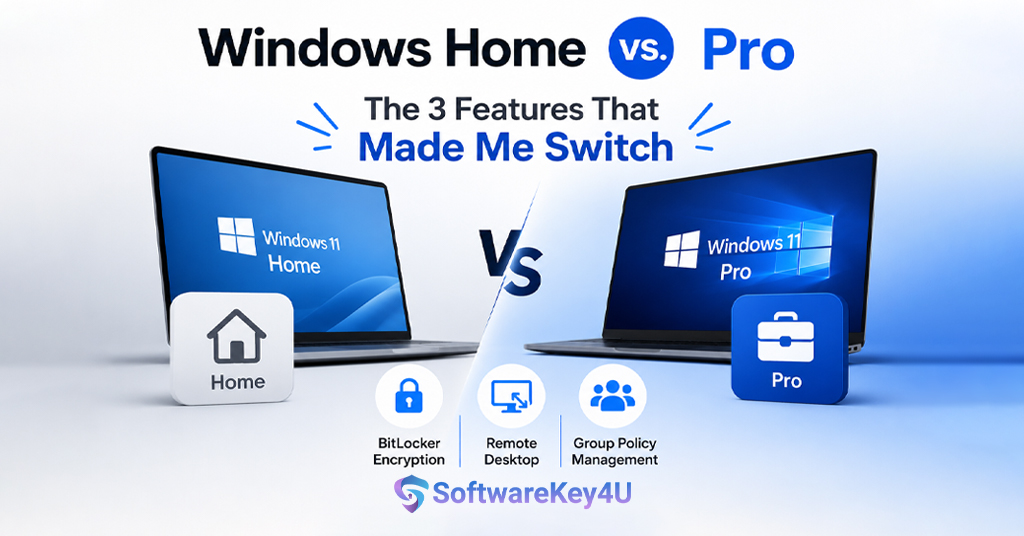
Windows 11 Pro is good for small to medium teams. It includes essential features like BitLocker and Remote Desktop. Windows 11 Enterprise is better for larger organizations. It offers advanced controls like App Control for Business and Credential Guard.
3. How do I secure Remote Desktop in Windows 11?
To secure Remote Desktop, enable Network Level Authentication (NLA). Use a VPN for connections over the internet. Change the default RDP port from 3389. Restrict access to specific users only.
4. What is the most important security feature in Windows 11 for Remote Work?
BitLocker is one of the most important features. It encrypts your entire drive. If your device is lost or stolen, your data stays safe. Windows Defender and Smart App Control are also critical.
5. Can I use Windows 11 for Remote Work without a VPN?
You can, but it is not recommended. A VPN encrypts your connection. It hides your IP address. It adds a crucial layer of security. Always use a VPN when accessing Remote Desktop over the internet.