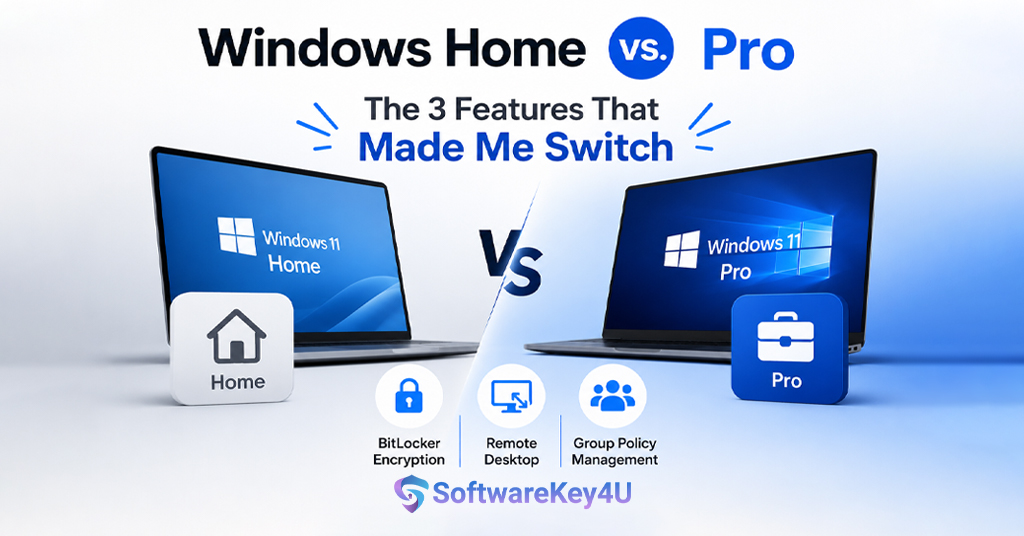
Windows Home vs. Pro: The 3 Features That Made Me Switch
I still remember that frustrating Tuesday afternoon. My freelance business was growing, and I was working from home. I had a client on the phone. They needed a file from my computer right away. I tried to let them in using Remote Desktop. But my Windows Home edition just said “no.” It could not host a remote session. I felt stuck. It was a moment of pure professional embarrassment. That day, I knew I had outgrown the basic OS. This is when my journey into the Windows Home vs. Pro decision truly began.
We all start with Windows Home. It comes on most new laptops. It is simple. It is easy. But as our needs grow, we hit walls. We find missing features. The choice between Windows Home vs. Pro is not just about price. It is about what you need your computer to do. For me, it was about security and control. I will break down my journey. I will share the exact features that pushed me to upgrade. Hopefully, this will help you decide if you need to make the same switch. We will explore the key differences between Windows Home vs. Pro. Let’s dive into the details that matter.
My First Problem: Security and BitLocker
Problem: I carry my laptop everywhere. Coffee shops, client meetings, and airports are my second home. Data security is a huge concern for me. I worried about losing my device. I was scared of someone stealing my data. Windows Home offers basic encryption. But it is not the full package. It lacks the total drive protection I craved. My sensitive files felt vulnerable. I needed a stronger solution. This was the main reason I started looking at Windows Home vs. Pro. The answer was clear: BitLocker.
Solution: Windows Pro includes BitLocker Drive Encryption. This is a game-changer for security. It encrypts your entire hard drive. If your laptop gets stolen, your data is safe. No one can access it without the key. This gives me total peace of mind. BitLocker is the top security feature that Pro offers. It is the first big difference in the Windows Home vs. Pro debate for me.
The safety it provides is invaluable for a freelancer. It protects my business and my client’s data. This single feature made the upgrade worth it. If you handle sensitive data, this is a must-have. Consider it when you compare Windows Home vs. Pro. It is a professional-grade security tool. It is what separates the “Home” from the “Pro” experience.
My Second Problem: The Need for Remote Control
Problem: That Tuesday afternoon call was a wake-up call. I needed to access my office PC from home. I also needed to help my team members fix issues. Sometimes, my family needs tech support, too. Windows Home only lets you connect to other PCs. It cannot host a connection. This was a major limitation for me. It forced me to use third-party apps. These apps often have monthly fees. They also add security risks. It was a hassle. This issue made the Windows Home vs. Pro decision very easy. I needed a built-in solution for remote work.
Solution: Windows Pro includes a built-in Remote Desktop feature. It allows you to host a remote session. I can now connect to my work PC from anywhere. I can also help my team quickly. This is the “Pro” part of the Windows Home vs. Pro comparison. It is a powerful tool for productivity. I use it almost every day now. It saves me time and money. There is no need for extra software. It just works right out of the box. This is the second reason I switched. It makes me more efficient. If you work remotely, this feature is essential. It bridges the gap between Windows Home vs. Pro. It is a tool made for professionals.
My Third Problem: Lack of System Control
Problem: I like to customize my computer. I want to control updates. I want to manage system settings. Windows Home treats you like a basic user. It hides many advanced settings. It forces updates on its own schedule. This was very annoying. I want control, not chaos. I want to tweak how Windows works. I want to stop unnecessary services. I want to delay big updates. This was the final push in the Windows Home vs. Pro debate. I needed more control over my own machine.
Solution: Windows Pro unlocks the Group Policy Editor. This is a powerful tool. It gives you deep control over Windows. You can change thousands of settings. You can control how updates are installed. You can lock down security policies. This is the real power of Windows Home vs. Pro. It is for people who like to tinker. It is for people who want to be in charge. I use it to turn off annoying features. I use it to optimize performance. This control is why many power users choose Pro. It turns a basic PC into a professional workstation. This is the third feature that made me switch. It made me feel like a “Pro” user.
The Bottom Line: Which One Is Right for You?
The choice between Windows Home vs. Pro depends on you. Think about how you use your computer. Are you a student? Are you a gamer? Do you just browse the web? If yes, Windows Home is likely fine. It has all the basics. It is cheap and simple. However, if you are a professional, the answer is different. Do you value security? Do you need remote access? Do you want more control? If you answer yes, you need Pro. The features are worth the extra cost.
The Windows Home vs. Pro decision is about your future needs. Buy a PC that can grow with you. I recommend investing in Pro. You get BitLocker for security. You get Remote Desktop for access. You get Group Policy for control. These are not just “nice to have” features. They are essential tools for modern professionals. When you weigh Windows Home vs. Pro, think about the cost of a data breach. Think about the time wasted on inefficient workflows. Pro pays for itself. It is the smarter choice for anyone who works on their PC. It is the choice that made me a better professional. It can do the same for you.
Where to Get Your Windows Pro Upgrade
Problem: You have decided to upgrade. You want to switch from Home to Pro. But where do you get the license? You need a genuine, affordable key. You want to avoid scams. You don’t want to overpay.
Solution: I recommend getting your key from a trusted source. I found a great deal for my own upgrade. You can get a legitimate Windows Pro license easily. I recommend softwarekey4u for your purchase. They offer genuine keys at competitive prices. They helped me make the switch seamlessly. It is the safe and easy way to go “Pro.” You can find them at https://softwarekey4u.com/. They ensure you get a working key. It is the best way to experience the full power of Windows Home vs. Pro. Choose them for a smooth upgrade.
Conclusion
Making the switch in the Windows Home vs. Pro debate was a turning point for me. I realized that Home was holding me back. It was not meeting my professional needs. The three features—BitLocker, Remote Desktop, and Group Policy—were game-changers. They enhanced my security, boosted my productivity, and gave me control. I no longer feel vulnerable on public Wi-Fi. I no longer get stuck in frustrating remote access situations. I am finally the master of my own system. The cost of the upgrade is small compared to the benefits. It was a simple upgrade process, but it had a massive impact on my workflow.
So, my advice is simple. Don’t wait for a “Tuesday afternoon” moment like I did. Evaluate your needs now. Think about the Windows Home vs. Pro decision carefully. If you are a business owner, a freelancer, or a power user, Pro is a must-have. The features justify the price. You get so much more value. You get a truly professional operating system. It is an investment in your peace of mind. Make the smart choice today. Upgrade to Windows Pro and unlock your PC’s full potential. It will be one of the best decisions you make for your work life. It certainly was for me.
FAQs
1. Can I upgrade from Windows Home to Pro easily?
Yes, you can. The upgrade is very easy to do. You can buy a Pro key and enter it in your settings. The process only takes a few minutes. Your files and apps stay safe during this upgrade of Windows Home vs. Pro.
2. Does Windows Home or Pro have better gaming performance?
No, there is no difference. Performance is the same across Windows Home vs. Pro. Both support all the key gaming features. So, gamers can stick with the Home version without any issues. The Pro version offers more business and security tools .
3. What is the main security difference between Windows Home and Pro?
The main security difference is BitLocker. Windows Pro includes BitLocker Drive Encryption. It offers full drive protection. Windows Home only has basic device encryption. This is a key point in the Windows Home vs. Pro discussion for data safety .
4. Is the price difference big between Windows Home and Pro?
Yes, there is a price difference. A Home license costs around $140. A Pro license costs about $200. Upgrading from Home to Pro usually costs around $100. This cost is often worth it for the extra features in Windows Home vs. Pro .
5. Can I use Remote Desktop on Windows Home?
No, you cannot host a remote session on Windows Home. You can only connect to other PCs. Windows Pro allows you to host a remote session. This is a big difference in Windows Home vs. Pro for remote workers and IT pros .
6. What is the Group Policy Editor? Is it in Windows Home?
The Group Policy Editor is a tool. It lets you change advanced system settings. It is not available in Windows Home. It is only found in Windows Pro, Education, and Enterprise editions. This is a major reason for the Windows Home vs. Pro choice for power users .