





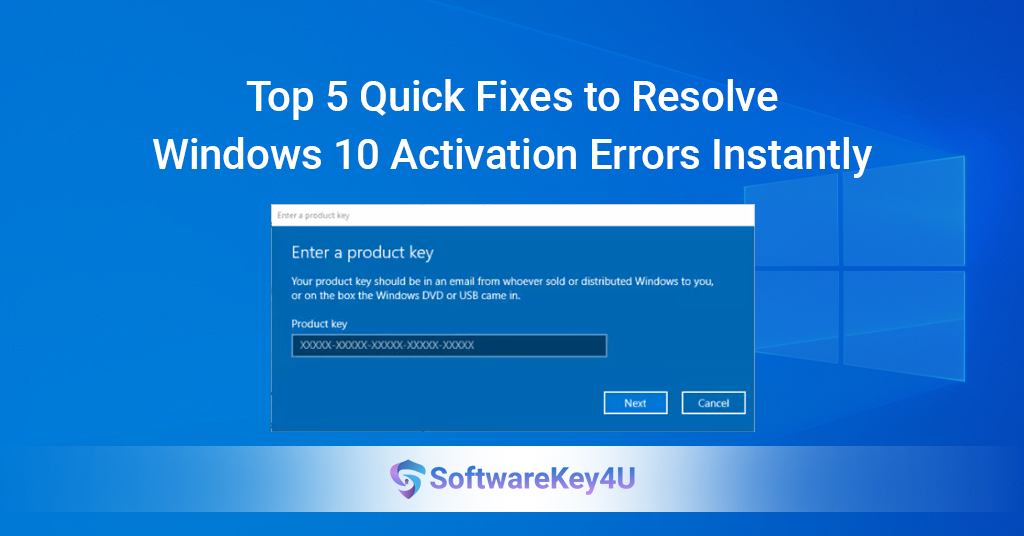
Windows 10 activation errors are common. They can prevent you from using all Windows features. But you don’t need to worry. You can resolve Windows 10 activation errors quickly. The top 5 fixes will be explained in this article. Each fix is easy and effective. Follow along and get your Windows activated in no time.
Why Is Windows 10 Activation Important?
Activation confirms that your Windows copy is genuine and licensed. Without it, your PC will lose access to many features. You’ll see constant reminders and watermarks on your desktop. It may also stop security updates.
That’s why it’s important to resolve Windows 10 activation errors fast. A genuine Windows license keeps your PC secure and up to date.
What Causes Windows 10 Activation Errors?
Understanding why activation fails helps fix it faster. Some common causes include:
-
Using an invalid or blocked product key.
-
Changing major hardware like your motherboard or hard drive.
-
Internet connection problems stopping communication with Microsoft servers.
-
Software corruption or glitches inside Windows.
-
Mismatch between Windows version and product key type.
Now let’s explore the top fixes to resolve Windows 10 activation errors effectively.
Fix 1: Double-Check and Re-enter Your Product Key Correctly
One of the simplest reasons for activation errors is a wrong or mistyped product key. Your Windows key must be exact and valid for your version.
Why This Fix Works
If you enter a wrong key, activation fails instantly. Sometimes people confuse letters and numbers. For example, ‘B’ and ‘8’ look alike. Also, keys bought from unreliable sources may be invalid or blocked.
Step-by-Step to Re-enter Your Product Key
-
Click the Start button.
-
Open Settings (gear icon).
-
Navigate to Update & Security.
-
Click Activation on the left panel.
-
Select Change product key.
-
Carefully type your 25-character product key. Make sure it matches the one you purchased.
-
Press Next and follow on-screen prompts.
Windows will check the key with Microsoft servers. If it’s genuine, activation completes quickly.
Tips to Avoid Mistakes
-
Copy and paste the key if possible to avoid typos.
-
Buy keys only from trusted sellers.
-
Avoid using keys meant for different Windows editions.
Re-entering the correct key resolves many activation errors fast and hassle-free.
Fix 2: Use the Built-in Windows Activation Troubleshooter
Windows 10 includes a handy Activation Troubleshooter. It scans your system for common problems and fixes them automatically.
When to Use This Fix
If your PC was activated before but stopped working after changes, the troubleshooter is your best friend. It helps when hardware upgrades confuse the activation system or when licenses are linked to Microsoft accounts.
How to Run the Activation Troubleshooter
-
Open Settings.
-
Click Update & Security > Activation.
-
Look for the Troubleshoot button under the Activation status section. Click it.
-
The troubleshooter will analyze your system and find problems.
-
If it finds an issue, it will suggest fixes or even fix automatically.
-
Follow any on-screen instructions carefully.
What the Troubleshooter Can Fix
-
Detects if your license is linked to your Microsoft account.
-
Resolves errors after major hardware changes.
-
Checks if your product key matches your Windows version.
-
Fixes network-related activation issues.
Running this tool often solves activation errors instantly without extra hassle.
Fix 3: Reactivate Windows After Hardware Changes
Changing major PC parts often triggers activation errors. Windows 10 associates your hardware ID with activation. When the motherboard or hard drive changes, Microsoft sees it as a new PC.
Why This Causes Errors
Microsoft uses a digital license system tied to hardware. Changing components breaks that link. The activation system thinks you moved your license to a new device, which may not be allowed.
How to Reactivate Windows with a Hardware Change
-
Connect your PC to the internet.
-
Open Settings > Update & Security > Activation.
-
Click Troubleshoot.
-
Look for the option: I changed hardware on this device recently and select it.
-
Sign in with your Microsoft account used to activate Windows earlier.
-
You’ll see a list of devices linked to your account. Select the device you are using now.
-
Select the box that reads I’m currently using this gadget.
-
Click Activate.
Windows will then update the license for your new hardware. This fixes activation errors after upgrades.
Pro Tips
-
Always link your license to a Microsoft account to use this feature.
-
Avoid changing too many parts at once if possible.
-
Keep a backup of your activation key.
Using this fix helps resolve Windows 10 activation errors caused by hardware changes without buying a new key.
Fix 4: Ensure a Stable Internet Connection for Activation
Activation requires communication with Microsoft servers. A weak or disconnected internet can block this, causing errors.
How Network Issues Affect Activation
When Windows tries to validate your key, it sends data online. If your connection drops or is slow, the process fails. Sometimes VPNs, firewalls, or proxies interfere with this communication.
Steps to Fix Network-Related Activation Errors
-
Check your connection status in Settings > Network & Internet.
-
Restart your router or modem.
-
Try connecting via a wired Ethernet cable for stability.
-
Disable VPN or proxy servers temporarily.
-
Turn off third-party firewalls or security software that may block activation.
-
Try activation again.
Additional Tips
-
Use the Windows Network Troubleshooter to diagnose issues.
-
Switch to a different network if possible (e.g., mobile hotspot).
-
Make sure date and time settings are correct on your PC; wrong time can block server communication.
Having a reliable internet connection is essential to resolve Windows 10 activation errors related to network problems.
Fix 5: Use Command Prompt to Force Reactivation
If other fixes fail, you can manually reactivate Windows using Command Prompt. This method clears old activation data and forces Windows to validate your key again.
Why Use Command Prompt?
Sometimes activation files get corrupted. This leads to persistent errors. Command Prompt lets you uninstall and reinstall your product key, refreshing activation.
Step-by-Step Guide to Using Command Prompt
-
Click Start and type cmd.
-
Right-click Command Prompt and select Run as administrator.
-
To uninstall the current product key, type:
slmgr.vbs /upk
Press Enter. -
To install your product key again, type:
slmgr.vbs /ipk YOUR-PRODUCT-KEY
Replace YOUR-PRODUCT-KEY with your actual 25-character key. Press Enter. -
Finally, activate Windows by typing:
slmgr.vbs /ato
Press Enter.
A notification stating that Windows has been successfully activated ought to appear.
Important Notes
-
Be sure to run Command Prompt as administrator.
-
Type the product key carefully to avoid mistakes.
-
This method is powerful but requires caution.
Using this method can resolve stubborn Windows 10 activation errors that other tools can’t fix.
Check Date and Time Settings to Resolve Windows 10 Activation Errors
One common but often overlooked cause of activation problems is incorrect date and time settings on your PC. Windows activation depends on syncing with Microsoft servers. When your system clock is wrong, it can’t validate the license properly.
To resolve Windows 10 activation errors related to date and time, first open the Settings app. Navigate to Time & Language and check your date, time, and time zone. Make sure these settings are accurate. Preferably, turn on the automatic time zone and time setting features. This ensures your PC stays in sync with official time servers.
If your date and time are off, Microsoft activation servers may reject your activation request. This leads to activation errors that can be frustrating. To resolve Windows 10 activation errors due to this, manually adjusting the clock often helps.
Additionally, consider restarting your PC after fixing the time settings. This resets the activation process and prompts Windows to contact Microsoft servers with the correct time. After restarting, check your activation status in the Settings app.
If you still face issues, run the Activation Troubleshooter (Settings > Update & Security > Activation > Troubleshoot). The troubleshooter also checks for common errors, including time sync problems.
Correct time and date settings are a simple fix but highly effective to resolve Windows 10 activation errors. They allow Windows to communicate without mismatch issues with Microsoft servers. So, always check your clock first before trying complex fixes.
To summarize, to resolve Windows 10 activation errors caused by time or date issues:
-
Open Settings > Time & Language
-
Enable automatic time and time zone
-
Correct any wrong settings manually
-
Restart your PC
-
Run the Activation Troubleshooter if needed
Fixing time settings is a straightforward way to resolve Windows 10 activation errors fast.
To fix Windows 10 activation issues, temporarily disable your firewall and antivirus software.
Sometimes security software interferes with Windows activation. Firewalls or antivirus apps can block Windows from reaching Microsoft’s activation servers. This causes activation errors.
To resolve Windows 10 activation errors caused by security software, try disabling your antivirus and firewall temporarily. This doesn’t mean you should leave your PC unprotected. Just turn them off during activation.
First, locate your antivirus icon in the system tray or open your antivirus program. Use the settings menu to disable real-time protection temporarily. Next, launch Windows Defender Firewall from the Control Panel and temporarily disable it.
After disabling these protections, go to Settings > Update & Security > Activation and try activating again. If Windows activates successfully, you’ve resolved Windows 10 activation errors caused by security interference.
Once activation is complete, turn your antivirus and firewall back on immediately to keep your PC secure. If you find that your antivirus always blocks activation, consider adding Windows activation processes to the antivirus whitelist.
In some cases, third-party firewall apps or network monitors block activation communication. You may need to uninstall or update these programs to prevent future activation errors.
Remember, the key to resolve Windows 10 activation errors caused by security apps is temporary disablement during activation. After resolving errors, keep your protection enabled for safety.
Fix Windows 10 Activation Issues by Resetting Windows Activation Status
Resetting Windows activation status can clear corrupted activation data causing errors. This method forces Windows to refresh activation information.
To resolve Windows 10 activation errors by resetting activation status, use the Command Prompt with administrator rights. First, open Command Prompt as admin.
Type:slmgr.vbs /rearm
and press Enter. This resets the activation timers and status.
After running this command, restart your PC. Once rebooted, try activating Windows again from Settings > Update & Security > Activation.
This command gives you extra time before activation is due and can clear corrupt files causing activation failure.
Remember, you can only use slmgr.vbs /rearm a limited number of times (usually three). Use it wisely.
Resetting activation status is a powerful way to resolve Windows 10 activation errors when other fixes fail. It clears hidden glitches in activation data.
To sum up the steps to resolve Windows 10 activation errors with activation reset:
-
Open Command Prompt as administrator
-
Run
slmgr.vbs /rearm -
Restart your PC
-
Try activating again
This fix often resolves persistent activation errors efficiently.
Upgrade Your Windows Edition to Resolve Windows 10 Activation Errors
Your product key may not match the Windows edition you have installed, which can occasionally result in Windows activation issues. For example, using a Windows 10 Home key on a Pro edition won’t work.
To resolve Windows 10 activation errors due to edition mismatch, check your Windows edition in Settings > System > About. Verify your product key matches this edition.
Upgrade or downgrade to the appropriate edition if not. You can upgrade from Home to Pro via Settings > Update & Security > Activation > Change product key. Enter a valid Pro key.
Matching your key to the correct edition will resolve Windows 10 activation errors instantly.
If you bought a key for Windows 10 Pro but have Home installed, this mismatch causes activation failures. Upgrading fixes the problem.
To avoid activation errors, always confirm your product key edition before installation.
In summary, to resolve Windows 10 activation errors from edition mismatch:
-
Check current Windows edition
-
Verify your product key matches edition
-
Upgrade/downgrade Windows edition if needed
-
Re-enter product key and activate
Clean Install Windows 10 to Resolve Windows 10 Activation Errors
If your system has many errors or corrupt files, activation errors may persist. Performing a clean install of Windows 10 can resolve this.
Clean install deletes all files and installs a fresh copy of Windows. This removes corrupt activation files causing errors.
Before starting, backup important data. To make a bootable USB, download Microsoft’s Windows 10 Media Creation Tool.
Boot from USB and follow instructions to install Windows. When prompted, enter your genuine product key.
Clean installation often resolves deep system issues that block activation. After installing, connect to internet and activate Windows.
A clean install is a last resort but effective way to resolve Windows 10 activation errors when other methods fail.
Use the Windows Activation Troubleshooter to Resolve Windows 10 Activation Errors
One of the easiest ways to resolve Windows 10 activation errors is by using the built-in Activation Troubleshooter. This tool automatically detects and fixes common problems that stop Windows from activating.
To resolve Windows 10 activation errors using the troubleshooter, go to Settings > Update & Security > Activation. If your Windows is not activated, you’ll see a Troubleshoot option. Click it to launch the troubleshooter.
The troubleshooter scans your PC for issues. It looks for problems like invalid product keys, server errors, or network problems. Then it suggests solutions or fixes them automatically.
Sometimes, the troubleshooter asks you to sign in with the Microsoft account linked to your digital license. This helps Windows verify your license and activate properly.
Using this troubleshooter can quickly resolve Windows 10 activation errors without complicated steps. It is especially useful when you upgrade hardware or reinstall Windows.
Remember, the troubleshooter runs several checks to resolve Windows 10 activation errors. If the tool cannot fix the issue, it will provide error codes or messages you can use to get further help.
In summary, to resolve Windows 10 activation errors easily:
-
Open Settings > Update & Security > Activation
-
Click on Troubleshoot
-
Follow the on-screen instructions
-
Sign in with your Microsoft account if needed
-
Let the troubleshooter fix problems automatically
This simple tool is often the fastest way to fix activation errors and get your Windows working fully again.
Reactivate Windows After Hardware Changes to Resolve Windows 10 Activation Errors
Major hardware changes like replacing your motherboard or hard drive can cause Windows activation errors. Microsoft ties the license to your device’s hardware. Changing components may confuse activation servers.
To resolve Windows 10 activation errors caused by hardware changes, use the Reactivate Windows feature linked to your Microsoft account. First, sign in to Windows with the same Microsoft account used before.
For troubleshooting, navigate to Settings > Update & Security > Activation. The troubleshooter will detect hardware changes and offer to reactivate Windows using your digital license.
If you don’t sign in with your Microsoft account, the activation servers may not recognize your PC. This causes activation errors.
By linking your license to your Microsoft account, you can easily resolve Windows 10 activation errors after hardware upgrades. This avoids buying a new license unnecessarily.
Also, avoid changing hardware often to minimize activation errors. Microsoft limits how often you can reactivate on different hardware.
To summarize, to resolve Windows 10 activation errors after hardware changes:
-
Sign in with your Microsoft account
-
Open Settings > Update & Security > Activation
-
Click Troubleshoot
-
Select I changed hardware on this device
-
Follow prompts to reactivate Windows
This method is the official way to fix activation issues caused by new hardware.
Check Your Internet Connection to Resolve Windows 10 Activation Errors
Windows needs a stable internet connection to communicate with Microsoft servers during activation. Poor or no internet access can cause activation errors.
To resolve Windows 10 activation errors related to connectivity, first verify your internet is working properly. Open a browser and visit several websites to confirm.
Restart your modem or router if your connection is erratic or slow. Sometimes, a simple network reset fixes the problem.
Also, avoid using VPNs or proxy servers during activation. These can block or reroute activation requests, causing Windows to fail activation.
Temporarily disable any network restrictions or firewalls that might block Microsoft servers.
Go to Settings > Update & Security > Activation and try Windows again after making sure your internet connection is clear and steady.
A stable internet connection helps Windows verify your genuine license and resolve Windows 10 activation errors quickly.
To fix Windows 10 activation issues caused by connectivity, in short:
-
Check your internet connection by browsing online
-
Restart your router or modem if needed
-
Disable VPNs or proxies during activation
-
Turn off firewalls or restrictions temporarily
-
Try activating Windows again
Good internet access is vital to a smooth activation process and avoiding errors.
Additional Tips to Avoid Activation Errors
-
Always purchase genuine product keys from trusted sources.
-
Link your Windows license to your Microsoft account.
-
Avoid unauthorized or cracked Windows versions.
-
Keep Windows updated to fix bugs.
-
Before major hardware upgrades, backup activation data.
Where to Buy Genuine Windows 10 Product Keys
If your current key is invalid or blocked, buying a genuine one is important. Authentic and reasonably priced Windows 10 licenses are available from reliable vendors such as SoftwareKey4U. Genuine licenses guarantee full features and future updates.
Also, if you need reliable software for work or study, check out Microsoft Office 2019 Professional Plus. It pairs perfectly with Windows 10 for productivity.
You can download here.
Conclusion: Resolve Windows 10 Activation Errors Quickly and Easily
Activation errors can be stressful, but you can fix them. Use these top 5 quick fixes to resolve Windows 10 activation errors:
-
Re-enter your product key correctly.
-
Use the Windows Activation Troubleshooter.
-
Reactivate after hardware changes via Microsoft account.
-
Ensure your internet connection is stable.
-
Use Command Prompt to force reactivation if needed.
Following these methods will get your Windows activated fast. Keep a genuine license to stay secure and enjoy all features.